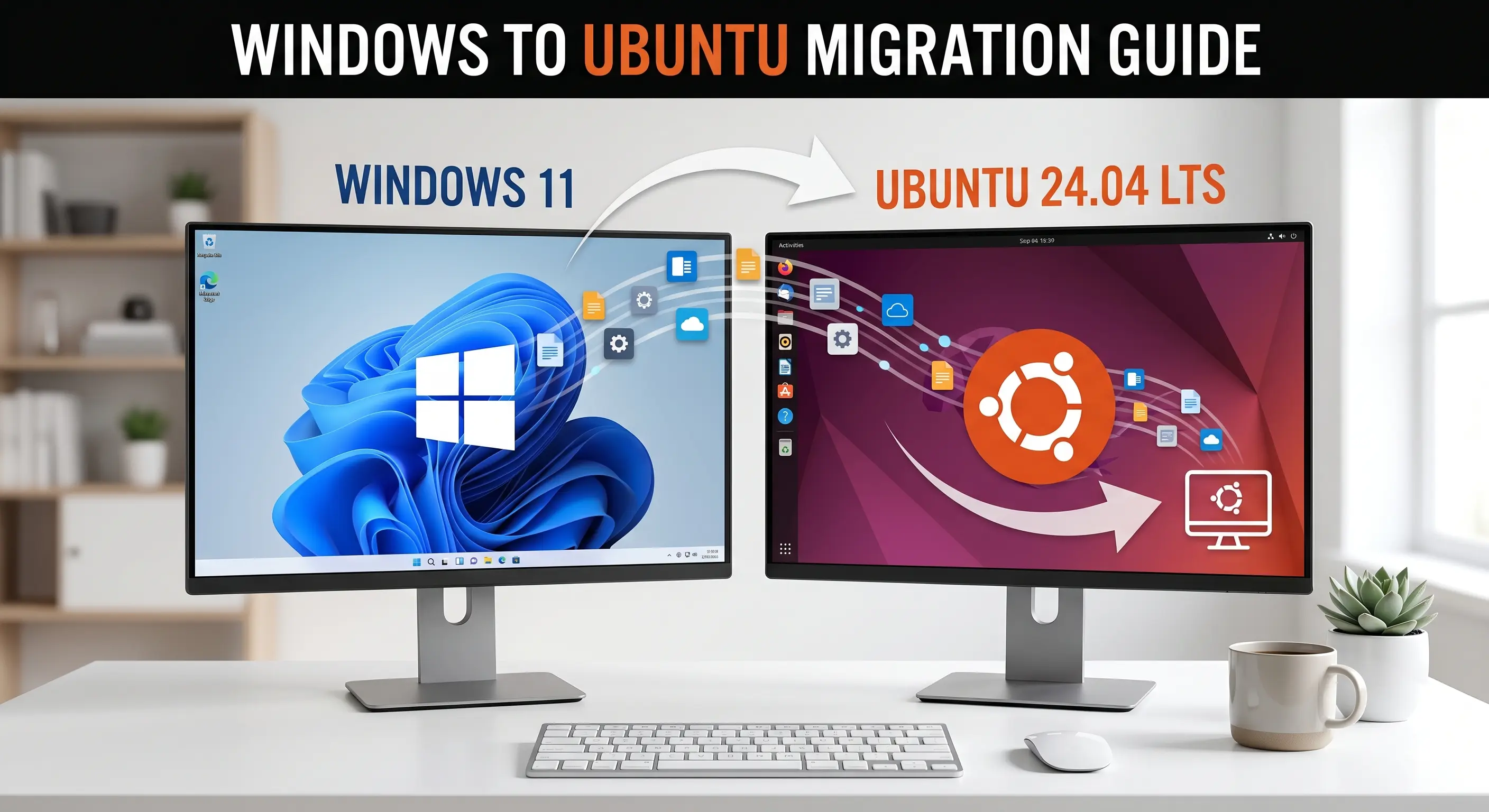

If you have decided to completely replace your Windows operating system with Linux, you are in the right place. This guide will walk you through the entire process of removing Windows and installing Ubuntu, leaving your computer with just one fast, secure operating system.
Before we begin, it is highly recommended that you already know the basics of what Linux is. Note that this guide is for a clean installation, meaning it will not show you how to dual-boot or use a virtual machine. This process will completely erase Windows and all data from your computer.
Let's get started!
Essential Pre-Installation Steps
Before you delete anything, you must protect your current data and your Windows activation license.
1. Save Your Windows Activation Key
If you ever decide to switch back to Windows in the future, you will need your product key. You can easily find it using the Command Prompt or by customizing your Windows Terminal if you use it frequently.
Method 1: Check if the key is stored in BIOS/UEFI
Open Command Prompt as Administrator and run the following command:
wmic path softwarelicensingservice get OA3xOriginalProductKeyIf your PC came with Windows preinstalled, this may display the product key. Copy the key and save it securely (e.g., write it down on a piece of paper or save it to your phone).
2. Back Up Your Important Files
This process will erase everything on your hard drive. Please back up all your photos, documents, and important files to an external hard drive, USB flash drive, or cloud storage before taking any further action.
Note:Digital License Note
Step 1: Disable BitLocker Encryption
If your Windows drive is encrypted with BitLocker, you need to turn it off so Linux can format and partition the drive during installation.
- Open your Terminal or Command Prompt as an Administrator.
- Check the current BitLocker status to see if encryption is enabled:
- This shows whether BitLocker is enabled and the encryption percentage.
manage-bde -status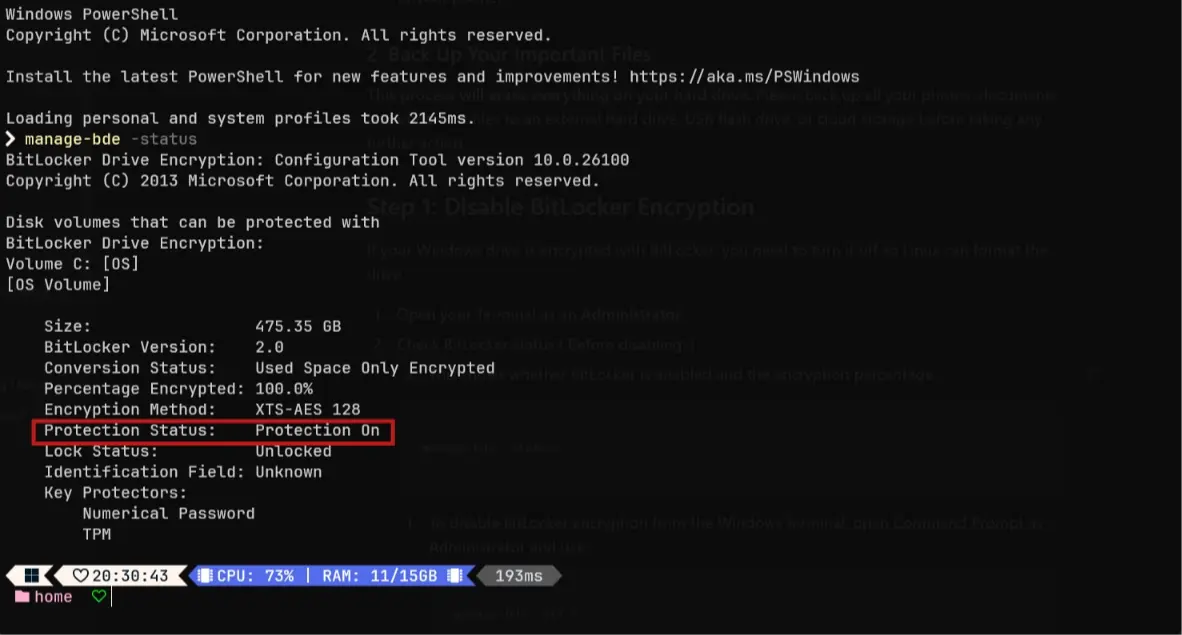
This command displays whether protection is enabled and the encryption percentage. If it is enabled, you'll need to turn it off.
- To disable BitLocker encryption, use the following command:
manage-bde -off CNote: Replace C: with the drive letter you want to decrypt if Windows is installed on a different drive.
Warning:Critical Warning: Backup Required
- Verify the decryption status again to ensure it says "Protection is Off." Once disabled, you can close the terminal.
Step 2: Download Ubuntu and Rufus
Next, you need to download the Linux operating system ISO and the flashing utility to create your installation media.
Download Ubuntu (The Operating System)
Ubuntu is one of the most popular, stable, and beginner-friendly Linux distributions available.
- Visit the official Ubuntu website.
- Click on the Download option in the main navigation.
- Select Get Ubuntu Desktop.
- Choose the LTS (Long-Term Support) version (e.g., Ubuntu 24.04 LTS). The LTS version is highly recommended because it offers five years of free security and maintenance updates.
- Click download and wait for the ISO file to complete.
Download Rufus (The USB Flashing Tool)
Rufus is a free, open-source utility that lets you write the Ubuntu installation files onto a USB drive to make it bootable.
- Go to the official Rufus website.
- Scroll down to the download section and choose the Portable Version. The portable version is convenient because it runs immediately without installation.
Step 3: Create a Bootable USB Drive
Now, we will write the Ubuntu OS onto your USB flash drive. Warning: This step will format your USB drive and erase all existing files on it. Make sure you've backed up its contents first.
- Insert an empty USB flash drive (minimum 8GB recommended) into your computer.
- Launch the Rufus software you just downloaded. It should automatically detect your USB drive under "Device."
- Click the Select button and locate the downloaded Ubuntu ISO file.
- Leave all other settings as their default values.
- Click Start. If Rufus prompts you to download additional GRUB files or asks for writing mode, accept the recommended defaults (e.g., write in ISO Image mode) and click OK.
- Wait a few minutes for the status bar to show "Ready." Your bootable Linux drive is now prepared!
Step 4: Change BIOS Settings (Disable Secure Boot)
To configure your PC to start from the USB drive instead of loading Windows, you must adjust the system BIOS/UEFI settings.
- Shut down your computer completely.
- Turn it back on and immediately start tapping the BIOS key repeatedly (common BIOS keys are
Esc,F2,F10, orDeldepending on your computer manufacturer). - Once you enter the BIOS/UEFI utility menu, navigate using your keyboard arrow keys.
- Go to the Security, Authentication, or Boot tab.
- Locate Secure Boot and set it to Disabled.
- Locate USB Boot or change the boot order priorities to Enable booting from USB devices.
- Navigate to the Exit tab, choose Save Changes and Exit (often
F10), and allow your computer to reboot.
Step 5: Boot from USB and Install Ubuntu
Now it is time to boot into the installer and set up Linux!
- As your computer restarts, press your Boot Menu key repeatedly (usually
F12,F9, orF8depending on the motherboard). - A boot selection menu will appear. Select your USB Flash Drive as the boot device and press Enter.
- Your system will load the Ubuntu startup menu. Select Try or Install Ubuntu.
The Installation Setup
Once the Ubuntu desktop installer launches, follow the setup wizard step by step:
Language & Keyboard
Select your preferred language and test your keyboard layout to ensure keys are typing correctly.
Network Connection
Connect to your Wi-Fi or wired network (optional, but recommended to download updates during installation).
Installation Type
Choose Default Installation for a clean system with standard apps, or Full Installation if you want pre-installed office tools and media players.
Erase Disk (Crucial)
Select 'Erase disk and install Ubuntu'. This option will permanently delete Windows and dedicate the entire drive to Linux.
Time Zone & Account Setup
Click your location on the map to set your time zone. Then, enter your name, computer name, username, and create a strong password.
Choose Theme
Pick your preferred visual theme (Light or Dark mode) to complete the basic user configuration.
Welcome to Linux!
Click the Install button, sit back, and relax. The installation process will take a few minutes to copy files and set up system configurations. Make sure your computer remains plugged into a reliable power source during this time.
Once the installation is complete, a prompt will appear. Click the Restart Now button. When the screen prompts you to remove the installation medium, pull out your USB flash drive and press Enter.
Your computer will boot directly into your brand-new, fast, and secure Ubuntu Linux operating system. Welcome to your new computing environment!
Spread the Knowledge
If you found this guide helpful, share it with your network!
You Might Also Like
Handpicked guides and fixes related to what you just read.

How to Create a Telegram Account: A Step-by-Step Guide
Learn how to easily create and set up your Telegram account on your mobile device or desktop.
Read more
How to Fix Windows 11 Bluetooth in 5 Minutes (Step-by-Step Guide)
Stop struggling with Bluetooth connectivity issues on Windows 11. Learn how to fix missing icons, pairing failures, and service bugs in just 5 minutes.
Read more
How to Customize Windows Terminal Look Better Themes, Fonts & Oh My Posh Guide (2026 Step-by-Step )
Transform your Windows Terminal from a plain black box into a modern, stylish, and productivity-focused workspace with themes, Nerd Fonts, and Oh My Posh.
Read more
How to Screenshot on iPhone: 3 Simple Ways (Step-by-Step)
Capture your iPhone screen like a pro! Discover the hidden Back Tap feature, AssistiveTouch shortcuts, and the classic button method for seamless screenshots.
Read more